

PICTURE QUALITY
4K IPTV UK: What Your Home Really Needs for a True 4K Picture
Getting 4K IPTV UK-wide sounds simple until the picture on your new telly looks no sharper than Freeview HD. In almost every case we look into, nothing is wrong with the stream: one link in the chain is quietly holding it back. The TV, the HDMI port, the streaming device, the broadband line and two or three menu settings all have to agree. Here’s how to check each one, in the order we check them on support calls.
⚡ KEY TAKEAWAYS
- A 4K picture needs five things in agreement: a 4K HDR TV mode, a full-bandwidth HDMI port, an HEVC-capable device, 25 Mbps or more per screen and the right output settings.
- Not every channel is broadcast in 4K. Plenty of live channels arrive in 1080p, and no setting on your side changes that.
- On Fire TV Stick 4K Max and Apple TV 4K, frame-rate matching makes more difference to football than resolution does.
- 4K streams are included in Premium Plus 12 months at £65; the Essential plan is HD only.
📑 Contents
- Native 4K vs Upscaled: Why Some Channels Stay at 1080p
- The UK IPTV 4K Chain, Link by Link
- Broadband for 4K: BT, Virgin Media and Sky Lines in Practice
- Fire TV Stick 4K Max Settings for UK IPTV in 4K
- Apple TV 4K: Match Content Is the Setting That Matters
- TV Settings: The HDMI Port That Quietly Caps 4K IPTV UK Viewers
- IPTV UK Sports in 4K on a Busy Saturday
- Frequently asked questions
- Getting Real 4K IPTV UK Pictures at Home
The most common 4K IPTV UK ticket we receive reads something like: “I paid for 4K, the TV says 4K, but it looks soft.” Most of the time, the TV’s info banner is telling the truth about the output signal and nothing about the source. A Fire TV Stick set to 2160p will happily send a 1080p channel to the TV in a 4K wrapper. The television shows “UHD” in the corner, and you’re still watching HD.

So before blaming the subscription, the device or the broadband, it helps to understand what real 4K needs from end to end. If you’re still choosing hardware, our round-up of the best devices for IPTV in the UK pairs well with this page. If you already have the kit, carry on: the checks below take about twenty minutes and need nothing more than the remote.
1Native 4K vs Upscaled: Why Some Channels Stay at 1080p
A 4K TV has 3840 × 2160 pixels. A 1080p channel has a quarter of that. When the source is 1080p, either the streaming device or the TV stretches it up to fill the panel. Good TVs do this well, which is exactly why people can’t always tell the difference, and why the banner saying “4K” proves very little.
Across the 36,000+ live channels in our offer, the picture quality depends on how each channel is produced and delivered. A share of channels and a lot of the on-demand library come in 4K; a large number of live channels arrive in Full HD, and some in HD. The channel library lets you see what’s available, and the 4K entries are usually labelled as such in the player’s group names.
How to tell what you’re actually watching
Most players show stream info on a long press or from the options menu. In TiviMate it’s under the playback overlay; in IPTV Smarters there’s an info icon during playback. Look for two numbers: the resolution (3840×2160 or 1920×1080) and the codec (HEVC/H.265 or AVC/H.264). Real UHD streams are almost always HEVC, because H.264 at that resolution would need far more bandwidth.
Tip. Pick one 4K entry from the list and one ordinary HD channel, then flick between them with the info overlay open. Once you’ve seen the difference on your own TV, you’ll stop doubting the setup every time a match looks slightly soft.
Honestly, a well-produced 1080p broadcast at 50 frames per second often looks better on a 55-inch screen than a poorly encoded 4K one. Resolution is one ingredient, not the whole recipe. The rest of this page is about making sure that when the source is 4K, nothing in your house throws the extra detail away.
2The UK IPTV 4K Chain, Link by Link
Think of the picture travelling from our servers, through your broadband, into the device, across the HDMI cable and finally onto the panel. Any link that can’t carry 4K drags the whole thing down to its level. Here’s the checklist we run through, with the typical failure we find at each step.
| Link | What it needs for 4K | What we usually find when it fails |
|---|---|---|
| Broadband | 25 Mbps or more of steady throughput per 4K screen | A 36 Mbps fibre-to-the-cabinet line shared with two phones and a console |
| Wi-Fi or cable to the device | Ethernet, or strong 5 GHz Wi-Fi | Device behind the TV, router in the hall, two walls in between |
| Streaming device | 4K output plus hardware HEVC decoding | An older non-4K Fire TV Stick or a budget Android box that drops frames |
| HDMI port and cable | HDCP 2.2, port set to enhanced or deep colour mode | Plugged into HDMI 3, which on that TV is limited |
| TV mode | HDR picture mode recognised, motion smoothing off | Vivid mode with every processing option switched on |
| Player app | Hardware decoder enabled, 4K stream chosen | Software decoder selected after a previous troubleshooting session |
Notice that the subscription only appears in the very first step, and only as the source. Everything else lives in your living room. That’s not us passing the buck: it’s simply where the problems turn up.
- Work from the top of the table down; fixing the TV mode won’t help if the line can’t carry the stream.
- Change one thing at a time and test on the same 4K entry, ideally a fast-moving sports or nature programme.
- Write down what you changed. It sounds fussy, but it saves going round in circles.
4K is part of Premium Plus
4K streams, the full guide and a premium player activated by our team are included in every Premium Plus length.
3Broadband for 4K: BT, Virgin Media and Sky Lines in Practice
Our rule of thumb for a 4K IPTV subscription is 25 Mbps of steady speed per screen showing 4K, measured on the device itself rather than on your phone next to the router. HEVC streams average less than that, but sports scenes spike well above the average, and the buffer needs headroom.
What that means on common UK connections:
- BT, Sky or TalkTalk on fibre-to-the-cabinet: a line syncing around 36 Mbps handles one 4K screen if little else is happening. Around 67 Mbps gives you room for a second screen in HD.
- Full fibre (BT, Sky, Virgin Media, altnets): speed is rarely the issue. Wi-Fi from the router to the TV usually is.
- Virgin Media cable: plenty of bandwidth, but the Hub’s Wi-Fi struggles through thick walls. A cable or mesh node near the TV helps a lot.
- 4G or 5G home broadband: works on good days, wobbles in the evening when the mast is busy. Not our first choice for live sport in 4K.
Why Ethernet beats “faster Wi-Fi”
Wi-Fi speed tests report a peak; 4K streams need consistency. A Fire TV Stick on Wi-Fi might show 120 Mbps in a test and still stall during a match because of interference from the neighbours’ networks at 9pm. If you can run a cable, do. If not, a pair of powerline adapters is a fair compromise in most British houses, though old wiring can limit them.
Two 4K screens double the demand. If you’re running the lounge and a bedroom TV at once, you need around 50 Mbps of real headroom, plus a multi-screen plan so both connections are allowed. Our guide to broadband speed for IPTV in the UK shows how to test properly.
📱 A question about this guide? Message us on WhatsApp.
4Fire TV Stick 4K Max Settings for UK IPTV in 4K
The Fire TV Stick 4K Max is the device we see most often in UK homes, and its defaults are mostly sensible. Three menus are worth checking, all under Settings > Display & Sounds > Display.
- Video Resolution: leave on Auto. If the stick picked 1080p because it detected an older HDMI port, move the cable first, then run Auto again.
- Dynamic Range Settings: choose Adaptive. “Always HDR” forces everything into HDR and makes ordinary channels look washed out or oddly dark.
- Match Original Frame Rate: turn it on. UK broadcasts run at 50 frames per second; without matching, the stick outputs 60 and you get a subtle judder on panning shots.
- Inside your player app, check that hardware decoding is enabled. In TiviMate it sits under Settings > Playback.
- Restart the stick from Settings > My Fire TV > Restart after changing these, so every app picks them up.
Frame-rate matching depends on the app passing the right signal to the system, so it behaves best in players that support it, TiviMate among them. Some players ignore it entirely. That’s one reason we include a premium player activation with Premium Plus, and there’s more on that on our TiviMate subscription page.
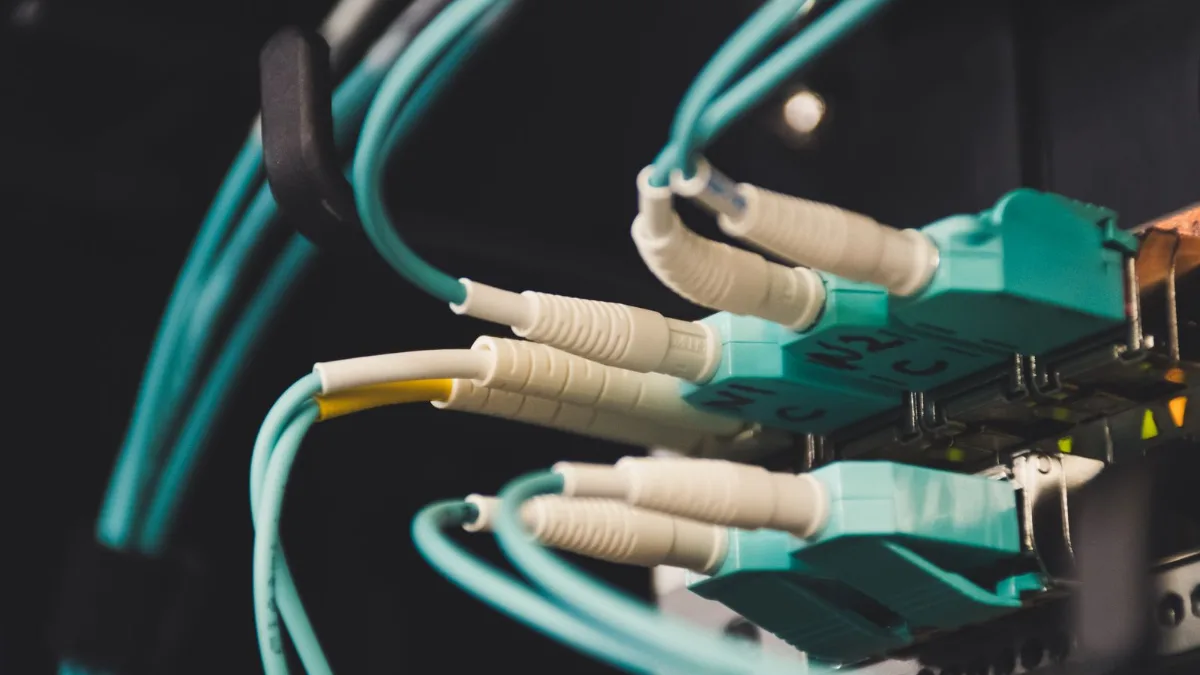
A quick word on the older, non-Max 4K stick: it decodes HEVC fine, but its Wi-Fi is weaker and it heats up during long sessions. If yours restarts in the second half, give it air, use the supplied HDMI extender and keep it off the back of a hot TV panel.
Quick test. Play a 4K entry, open the player’s info overlay and confirm 3840×2160 HEVC with no rising dropped-frames counter over 60 seconds. If that holds, the stick is doing its job.
5Apple TV 4K: Match Content Is the Setting That Matters
Apple TV 4K is the other box we recommend for a sharp, steady picture. Its approach is different from the Fire TV’s: you set a base format and let the box switch modes when content demands it.
The settings we use
Go to Settings > Video and Audio. Set Format to 4K SDR at 50 Hz, which suits British broadcasts. Then open Match Content and switch on both Match Dynamic Range and Match Frame Rate. With these on, the Apple TV only moves into HDR or Dolby Vision when a programme is actually mastered that way, and it follows the frame rate of the stream.
The mistake we see most is leaving Format on Dolby Vision 60 Hz with matching off. Everything then gets converted, menus look over-bright, and football at 50 fps judders. It’s the opposite of what people expect from a premium box.
The sharpest picture isn’t the one with the most letters on the banner. It’s the one where nothing between the source and the screen is converting anything.
A screen blink of a second or two when a channel starts is normal with Match Content: the TV is changing mode. If it bothers you, you can switch off Match Frame Rate, but on sport we’d rather keep it on and accept the blink.
The player choice on Apple TV is narrower than on Android-based devices; our applications page lists what works with your login. If you’d like more Apple-specific help, the related guide below covers setup from scratch.
Tip. Run Check HDMI Connection under Video and Audio once. It takes two minutes and tells you whether the cable and port can carry 4K HDR reliably.
6TV Settings: The HDMI Port That Quietly Caps 4K IPTV UK Viewers
Here’s the trap we find more than any other. Many TVs ship with their HDMI ports in a compatibility mode that limits the colour depth and bandwidth they accept. The device then falls back to a lower format without telling you. You have to switch the port to its full mode yourself, once, in the TV’s menu.
| TV brand | Setting name | Where we usually find it |
|---|---|---|
| Samsung | Input Signal Plus | Connection > External Device Manager |
| LG | HDMI Ultra HD Deep Colour | General > Devices > HDMI Settings (menu names vary by webOS year) |
| Sony and other Google TV sets | HDMI signal format: Enhanced format | Channels & Inputs > External inputs |
| Hisense / Philips | HDMI 2.0 / Enhanced or similar | Input or picture settings, per port |
Turn it on only for the port your streaming device uses. Some older soundbars and set-top boxes dislike the enhanced mode, which is why manufacturers leave it off.
Picture mode and processing
Once the TV recognises HDR, it switches to an HDR picture mode on its own. Pick Standard or Filmmaker/Cinema rather than Vivid. Then turn motion smoothing down or off; on sport, a low setting can be acceptable, but high settings create a soap-opera look and occasional artefacts around the ball.
If your TV is a Samsung or LG and you’d rather avoid an external device altogether, our guide to IPTV on Samsung and LG Smart TVs explains which apps run natively. Built-in apps can play 4K, but in our experience their decoders are less forgiving than a Fire TV Stick 4K Max or Apple TV 4K.
Lounge in 4K, bedroom in HD?
If two TVs play at the same time, a multi-screen plan keeps both connections running without the “max connections” message.
7IPTV UK Sports in 4K on a Busy Saturday
Live sport is where every weakness shows. A Saturday evening kick-off or a Sunday afternoon match coincides with peak demand on home networks and on the wider internet. Fast motion is also the hardest thing for any encoder, so bitrates spike precisely when your connection is busiest.
What we suggest for IPTV UK sports 4K viewing, in practice:
- Start the stream ten minutes before kick-off so the player builds its buffer and you catch problems early.
- Pause cloud backups, console downloads and big app updates during the match. One game update can swallow 30 Mbps on its own.
- Keep a 1080p version of the same channel in your favourites. If the 4K feed struggles, switch rather than sit through buffering.
- If several people in the house want different matches at once, check you’ve got enough connections, as each screen streaming at the same moment counts separately.
The 1080p fallback deserves a word. At 50 frames per second and a healthy bitrate, Full HD football looks very good indeed, and it needs about half the bandwidth. On a busy FTTC line, it’s often the smarter choice for live play, saving 4K for films and documentaries from the on-demand library, which has 260,000+ titles and is refreshed every month.
If buffering still appears at the same point each weekend, it’s usually congestion rather than settings; our UK buffering fix guide walks through the network side in more detail.
For two TVs showing different matches, the two-screen yearly plan at £100 covers both connections at once.
Frequently asked questions
Is 4K IPTV UK worth it on a 43-inch TV?
On a 43-inch set viewed from the sofa, the jump from good 1080p to 4K is small, and many people can’t see it. HDR and frame rate matter more at that size. 4K pays off on 55 inches and up, or if you sit close. If your TV is smaller and your broadband is modest, a well-tuned Full HD setup is a sensible choice, and Premium Plus still gives you 4K for when you upgrade the screen.
What broadband speed do I need for 4K IPTV?
We recommend 25 Mbps of steady speed per screen watching 4K, measured on the streaming device, not on a phone by the router. One 4K screen on a 36 Mbps line is fine if little else is running. Two 4K screens at once need around 50 Mbps of real headroom. Ethernet or a strong 5 GHz signal to the device matters as much as the package speed you pay your provider for.
Why does my 4K IPTV look like HD?
Usually because the channel itself is 1080p and your device is upscaling it, or because one link in the chain is limiting the signal. Check the stream info in your player for the resolution and codec, make sure the HDMI port is in enhanced or deep colour mode, and confirm the device outputs 4K with Adaptive HDR. If a 4K entry still plays at 1080p, test the line speed on the device.
Does the Essential plan include 4K?
No. The Essential plan is HD and costs 25% less, which suits smaller TVs and slower lines. It also doesn’t include the premium player activation. Premium Plus includes 4K where available, the full EPG and catch-up on compatible channels, plus a premium player activated by our team. You can compare both side by side on the pricing page before choosing a length.
Which device is best for UK IPTV in 4K?
In our experience, the Fire TV Stick 4K Max and Apple TV 4K give the most reliable 4K playback, thanks to solid HEVC decoding and proper frame-rate matching. Recent Android TV boxes from known brands work well too. Built-in Smart TV apps can play 4K, but they tend to be less tolerant of busy networks. Whatever you choose, connect it to the TV’s full-bandwidth HDMI port.
Can I watch 4K IPTV on two TVs at once?
Yes, with a multi-screen plan, which gives you two, three or four simultaneous connections on one yearly subscription. Bandwidth is the real limit: allow around 25 Mbps per 4K screen, plus whatever else the household is doing. Many families run 4K in the lounge and HD in a bedroom, which keeps the total demand comfortable on a typical fibre line.
Getting Real 4K IPTV UK Pictures at Home
True 4K IPTV UK viewing isn’t about one magic setting. It’s about removing the bottlenecks: steady broadband with headroom, a cable or strong Wi-Fi to the device, a player that decodes HEVC in hardware, an HDMI port in its full mode and a TV that isn’t over-processing the image. Get those right and the 4K entries look the way they should, while 1080p channels look their best too.
When you’re ready, compare plan lengths on our pricing page, or choose Premium Plus for 12 months at £65, paid once by bank card (Apple Pay and Google Pay accepted), with no automatic renewal. After ordering, you receive the payment link and then your login by WhatsApp or e-mail. If the picture still isn’t right after these checks, send your TV model, device and line speed to contact@iptv-premium.net or via WhatsApp on +1 307 443 4916, and we’ll go through it with you.